Dazzling Designer Blogger Template

Posted by Unknown Minggu, 13 Januari 2013 0 komentar
Dazzling Designer Blogger Template
Template Name: Dazzling Blogger Template
Platform: Blogger / Blogspot
Release date : 13, January 2013
Author : www.templateism.com
License : Creative Commons Attribution 3.0

Download Preview


Dazzling Designer is a Premium Responsive Theme especially created for Designing Niche web blogs and websites. However, it also suites perfectly on Technology, News updates, Business, Gadgets and Top 10s (List based) websites. It has a Sticky Floating Header, Navigation Menu and a capsule search bar. It utilizes CSS, CSS3, HTML, XML and jQuery. The design of this Blogger Template is extremely efficient and also has plenty of customization options. The Dazzling Designer Blogger Template is compatible with all browsers and has crystal clean code/documentation.

Features of Dazzling Designer Blogger Template:

  1. Floating Sticky Header: It has a Sticky Scrolling Header that automatically scrolls at the top of your screen whenever a person scrolls up or down the page. Another significant thing about our header is that it automatically resizes your Image Logo accurately to fits the dimensions of the Header. 

  2. Floating Sticky Drop Down Menu: The Scrolling Sticky drop down menu is positioned just beside the header so visitors can effortlessly navigate all the way through the website without scrolling back to the top of the page. 

  3. Capsule Sticky Search Bar: The search bar of this theme is outstanding because it works on Hover techniques. Let us learn how it works. It displays a Small rounded image, now whenever a user would click on that image it would display the entire Capsule bar. Does that sound interesting? Indeed. 

  4. 2 Column Post Display on Home/Static Pages: Unlike, other Blogger Template, this theme has 2 column post displays on static and home page. It means two different articles would display in 2 columns one after another. If anyone is confused then, he can view the DEMO to remove his confusion. 

  5. CSS3 Custom Labels: It also has Customized Labels. Whenever, users would place their mouse over Labels it would display a miraculous hover effect. However, anyone can customize it according to their needs.

  6. Thumbnail Related Posts: In this theme, we have added a Thumbnail Related post widget which would work on automation. The Thumbnails are of normal size so it could easily be seen by the readers.

  7. Ads Ready: We have added some HIGH CPC Advertising spots in this blogger template so everyone can easily improve their online income. Some featured advertisement spots includes, One ad Below the Header and One ad Above the Footer.
More Features: SEO Friendly, WordPress Look, Web 2.0, Magazine Style, Static Home page, Fixed Width, Light Blue and White color Scheme, threaded commenting system, 4 columns footer and much more.

How To Customizing Drop Down Menu?

Go To Blogger.com >> Template >> Edit HTML >> Proceed. Now search for the following coding in the template. After finding it Replace # with your URLs and Save the template.

<div class='block block-system' id='block-system-main-menu'>
<h3 class='title'>Main menu</h3>
<div class='content'>
<ul class='menu'>
<li><a href='#' title=''>Homepage</a></li>
<li class='expanded'>
<a href='#'>Inspiration</a>
<ul class='menu'>
<li class='leaf'><a href='#'>Illustration</a></li>
<li class='leaf'><a href='#'>Logos</a></li>
<li class='leaf'><a href='#'>Photography</a></li>
<li class='leaf'><a href='#'>Typography</a></li>
<li class='leaf'><a href='#'>Daily Inspiration</a></li>
<li class='leaf'><a href='#'>Sites of the Week</a></li>
<li class='leaf'><a href='#'>Rawz</a></li>
</ul></li>
<li><a href='#'>Wallpapers</a></li>
<li><a href='#'>Interviews</a></li>
</ul>
</div>
</div>

How to Add Advertisements Below Header/Above Footer?

We have created two Gadgets areas in the Layout are of the Template. So whenever anyone want to ad Ads Above the Footer or Below the header then he can Do As follows.
  1. Go To Blogger >> Layout.
  2. Select Add a Gadget (Below Header/Above Footer).
  3. Select HTML/JavaScript >> Paste the Ad code.
  4. Save the Template. Done! 

How to Add Widget or Ads Above/Below Posts:

Go To Blogger.com >> Template >> Edit HTML >> Proceed and Search for the Following coding.

To Show Below Post Title:
<b:if cond='data:blog.pageType == &quot;item&quot;'>
<!--Google Adsense Ad Code (Below Post Title)-->
</b:if>
To Show at The End of Posts: 
<b:if cond='data:blog.pageType == &quot;item&quot;'>
<!--Google Adsense Ad Code (At the End of Posts)-->
</b:if>
Replace:
<!--Google Adsense Ad Code (Below Post Title)--> To Show widget Below Post Title.
<!--Google Adsense Ad Code (At the End of Posts)--> To display Widget at the end of posts.

From The Designer's Desk:

This theme is extremely handy for Graphics, Technology, Multimedia and Gadgets niche websites. Our Designers are quite sure that no one would have seen such sort of Template before on Blogger Platform. However, it is just beginning some truly marvel themes are scheduled for the coming weeks. Don't forget to leave your comments and suggestions below. 

Baca Selengkapnya ....

Download YouTube Videos Using Opera Mini Mobile Browser!

Posted by Unknown Minggu, 06 Januari 2013 0 komentar
Many people use mobile internet and almost all of them use Opera Mini to browse internet. Opera mini is a very fast and flexible mobile browser in present days. Almost every internet enabled mobile has an Opera mini!

I also use opera mini to browse internet from my mobile. Opera mini supports almost every phone models. They have java, Symbian, android, windows etc versions for different OS s.
Download youtube videos opera mini
So, those was the good side of opera mini. Beside them opera mini have some problem with flash content, video download etc. opera mini don’t let users to download videos from YouTube.com.

Opera mini doesn’t support video download from YouTube.com! that’s why, people can’t store YouTube videos on their phone…OK, No longer this problem will stay. Here I m gonna show you how to download YouTube videos from opera mini. It’s so easy to do.

Let’s see how:

Step 1: Run Opera min from your phone and type m.youtube.com
Opera mini video download
Step 2: Find and select the video which one you want to download.
Opera mini video download
Step 3: Now have look on the address bar. Its showing something like this m.youtube.com/watch?......
Step 4: Just put ss instead of m. (e.g: ssyoutube.com/watch?...... ) and press go.

Opera mini video download
Step 5: You will see some video format list. Select in which format you want to download this video.
Opera mini video download
Enjoy YouTube videos on the go even you are offline and share over Bluetooth J. Please don’t forgot to leave us comment.

Read also:  Convert Any YouTube Videos to mp3 Easily

Baca Selengkapnya ....

Hi-Tech Technology Blogger Template

Posted by Unknown 0 komentar
Hi-Tech Technology Blogger Template
Template Name: Hi-Tech Blogger Template
Platform: Blogger / Blogspot
Release date : 07, January 2013
Author : www.templateism.com
License : Creative Commons Attribution 3.0

Download Preview


Hi-Tech Technology is a Free Blogger Theme/Template especially for Blogs, Magazine, News Portals and Technology Blogs. It has clean and minimal touch with modern standards design. This Template is also responsive and works smoothly on each and every platform (Resize your Browser and see the magic).  We have used (H1, H2, H3) heading tags that play quite significant role in SEO (Search engine optimization). Furthermore, it comes with tons of built-in features.

Hi-Tech Technology Blogger Template

Features of Hi-Tech Technology Blogger Template:

Elegant Look: This theme is clean and has an impressive look. The layout is remarkable that would amuse the visitors. Since, it has an elegant look. Therefore, people will never guess that it is hosted on Blogger Platform, not on WordPress.
  1. Auto Thumb & Read More: This template also has automatic thumbnail and read more button generation functionality. It would somehow lessen your stress of manually adding Jump break. 

  2. Breadcrumbs: Another miraculous widget we have in this template is Breadcrumbs for humans. It has nothing to do with SEO. The breadcrumbs would only display parent categories of the article so users can easily search your site in depth. 

  3. Custom Background: Unlike other themes, it has custom Sticky Background which gives it a fashionable look. However, anyone can change it according to his desire needs (On the DEMO Scroll down the page and see the background floating on your screen.

  4. Responsive Design: It has responsive design that supports different resolutions i.e. iPad, iPod, Android and etc. (Try resizing the page of your browser and see the magic).

  5. Google Ads Ready: This theme has quality advertisements spots which would surely increase your earning i.e. beside main logo, Below/Above post title, etc.  
More Features:  SEO Friendly, WordPress Look, 2 Columns, Technology Style, Static Home page, Fixed Width, Blue and White color Scheme, threaded commenting system, 4 columns footer and much more.

How To Customize Menu Bar?

To Edit/Change the Menu bar just go to Blogger.com >> Your Site >> Template >> Edit HTML >> Proceed and in the template search for the following coding. (If you are unable to find the following coding then, look for similar one.
<nav class='main'>
<div class='menu-header-container'>
<ul>

<li class='menu-item'><a href='/' title='Diffuser'><span class='nav_item'>Home</span></a></li>

<li class='menu-item'><a href='#' title='Music News'><span class='nav_item'>News</span></a></li>

<li class='menu-item'><a href='#' title='Top 10 Lists and More'><span class='nav_item'>Features</span></a></li>

<li class='menu-item'><a href='#' title='Songs'><span class='nav_item'>Songs</span></a></li>

<li class='menu-item'><a href='#' title='Videos'><span class='nav_item'>Videos</span></a></li>

<li class='menu-item'><a href='#' title='Free Music Downloads'><span class='nav_item'>Free Music Downloads</span></a></li>

<li class='menu-item'><a href='#' title='Interviews'><span class='nav_item'>Q+A</span></a></li>

</ul>
</div>

<div class='social_icons size_24'>
<a class='share_link facebook' href='https://www.facebook.com/templateism' target='_blank' title='Follow on facebook'><span class='social_icon'>follow on facebook</span></a>

<a class='share_link twitter' href='http://twitter.com/templateism' target='_blank' title='Follow on Twitter'><span class='social_icon'>follow on Twitter</span></a>

<a class='tip-us' href='#'>Tip Us</a>

</div>
</nav>

How to Add Widget or Ads Above/Below Posts:

Go To Blogger.com >> Template >> Edit HTML >> Proceed and Search for the Following coding.

To Show Below Post Title:
<b:if cond='data:blog.pageType == &quot;item&quot;'>
<!--Google Adsense Ad Code (Below Post Title)-->
</b:if>
To Show at The End of Posts:
<b:if cond='data:blog.pageType == &quot;item&quot;'>
<!--Google Adsense Ad Code (At the End of Posts)-->
</b:if> 
Replace:
<!--Google Adsense Ad Code (Below Post Title)--> To Show widget Below Post Title.
<!--Google Adsense Ad Code (At the End of Posts)--> To display Widget at the end of posts.

From The Designer's Desk:

This theme is ideal for a blog that shares tips, tricks, and news about gadgets. It’s a complete package that would bring a whole new spark in your content. It is extremely flexible, and anyone can easily customize it according to his needs. What are your thoughts and views about this Template? Anything you want to see in upcoming themes? Feel free to comment your precious opinions.

Baca Selengkapnya ....

Play Android Apps & Games On Your Windows or Mac pc

Posted by Unknown Sabtu, 05 Januari 2013 0 komentar
Do you love to play android games on Google Play or Play Store? If so, here I m going to show you how to play android games or play store games on your Windows desktop or Mac PC.
Android+Windows7
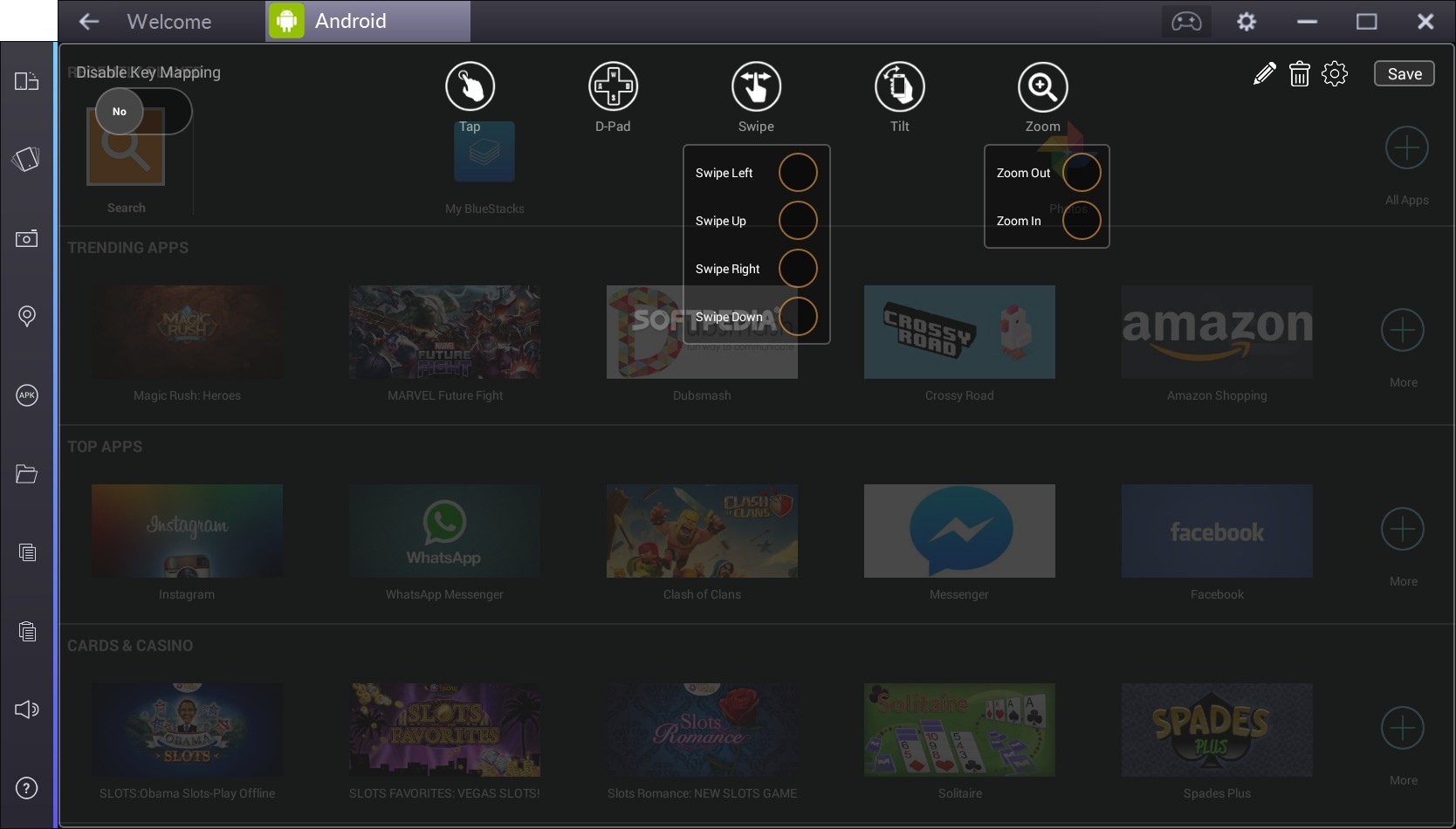
The ‘BlueStacks’ are giving the android advantages for windows and Mac users. By using this program you can run any android apps or play all android games on your desktop computer. You just need to install a 8 MB software on your computer. And then you are free to play any android games from play store on your PC.
The key feature : BlueStacks App Player lets you run apps from your phone fast and full screen on Windows and Mac.

Let’s Start:
1. Download BlueStacks App Player.
2. Install on your PC.
Installing BlueStacks
How it Looks
3. Now enjoy the android advantages.
Thank you so much for your patient and read this article. Please feel free to comment if you like this software or have any questions or suggestion!

Baca Selengkapnya ....

AMD Driver Autodetect

Posted by Unknown Jumat, 04 Januari 2013 0 komentar
AMD Driver Autodetect mendeteksi kartu grafis Anda dan sistem Windows ® operasi. Jika ada driver baru, alat akan men-download dengan satu klik tombol dan memulai proses instalasi. Alat autodetect dirancang hanya untuk mendeteksi sistem operasi di Windows.

AMD Driver Autodetect mendeteksi kartu grafis dan sistem operasi dan memberitahu Anda jika driver baru tersedia. Jika ada driver baru, alat akan men-download dengan satu klik tombol dan memulai proses instalasi.

Alat auto-mendeteksi memberikan Anda pilihan untuk men-download driver resmi terbaru. Jika Anda ingin mendapatkan driver beta terbaru, Anda dapat men-download di sini.


NameFile SizeRevision NumberRelease
Date
Download
Link
AMD Driver Autodetect774 KB1.07/17/2011Download


Baca Selengkapnya ....

Turn Your Mobile Phone Into A Wi-Fi Hotspot

Posted by Unknown Kamis, 03 Januari 2013 0 komentar
Use your mobile phone as a Wi-Fi hotspot router and use it to share mobile internet with other devices through wi-fi. From today your mobile handset will be your virtual WiFi hotspot and a WiFi hotspot will be always with you wherever you go.

This is no matter to use internet if you are using more then one PC, laptops, or mobile devices. it's now just a matter of some few steps! just go on and read this post.
Mobile Wi-Fi Hotspot

In Some of my previous post I show u How to Turn a laptop or desktop PC into a Wi-Fi hotspot. But in this post I m going to show you How do u can use your Nokia Symbian phone as a Wi-Fi hotspot and use its active internet connection through your other Wi-Fi enabled devices like laptop, desktop or mobile etc.

Many people use more than one PC, laptop or mobile phone to use internet or browse websites at their home or office. But no one use more than one connection to use it into those multiple devices. Some people use  LAN (Local Area Network) method.

But days are getting modern and modern tech lovers are start using WLAN (Wireless Local Area Network). This type of people use Wi-Fi to multiply their internet connection. 

So..The main topics was, How to turn a mobile phone into a wireless hotspot and use it to other devices. To make it happen, u have to have:

1. A Nokia or Sony Ericson Mobile Phone (Search Google to see the supported models)
2. Active Internet Connection on Your Mobile.
3. And Finally The "Joikuspot Premium" Mobile Application.

Download Link: Click Here!


Now Follow This Steps:

Step 1: Install Joikuspot Premium into your phone and restart your phone after installation.
Joikuspot wifi
Step 2: Open the application, it will ask you "Allow Sharing Your Internet Connection With External Devices?". Select ‘No’.
Step 3: Go to ‘Option’ menu and select your internet access point to share connection.
Nokia Joikuspot wifi
Step 4: Press ‘Start’ and it will start sharing your connection through Wi-Fi within a moment.
Joikuspot wifi creator

Step 5: Now search from any other Wi-Fi enabled device to find and use this mobile Wi-Fi hotspot.
Happy internet using.. you can monitor your Wi-Fi activity in this tab.
Joikuspot wifi 2
If you want to stop network sharing you can press stop button any time to stop hotspot sharing.
Joikuspot wi-fi
I have tried to explain in details as much as possible, if you still have any complicity with any steps in this process then please feel free to leave a comment in the box bellow. I should get back to you immediately to solve your problem.

See also:
How To Make A Computer Into A Wi-Fi Hotspot With Connectify hotspot Software
How To Turn Desktop Connection Into Wi-Fi Hotspot With Hotspot Creator
How To Hack Any Wi-Fi Hotspot And Use Free Internet

Baca Selengkapnya ....

Sejarah Dan Penjelasan TOSHIBA

Posted by Unknown Selasa, 01 Januari 2013 0 komentar


Toshiba adalah perusahaan Jepang yang memproduksi dan memasarkan berbagai peralatan listrik dan produk elektronik yang canggih, yang berkantor pusat di Tokyo, Jepang. Toshiba dinilai sebagai perusahaan no 7 dunia untuk produsen terintegrasi untuk peralatan listrik, elektronik dan sebagai pembuat chip. Toshiba Semikonduktor termasuk 20 besar pemimpin penjualan semikonduktor di dunia.

Toshiba dibentuk pada tahun 1939, merupakan hasil merger dari dua perusahaan. Tokyo Denki adalah perusahaan yang bergerak dibidang consumer goods dan perusahaan mesin Shibaura Seisakusho. Mengambil beberapa huruf didepan dari masing-masing perusahaan “TO” dan “SHIBa” maka lahirlah merek Toshiba. Pada tahun 1984 perusahaan itu resmi berubah menjadi Toshiba Corporation. Grup ini makin kuat melalui pertumbuhan internal dan melalui akuisisi perusahaan rekayasa alat berat dan perusahaan industri primer pada 1940-an dan 1950-an. Kemudian pada 1970-an dan seterusnya, anak perusahaan mulai didirikan, yaitu: grup Toshiba Lighting & Teknologi (1989), Toshiba Carrier Corporation (1999), Toshiba Elevator & Building System Corp (2001), Toshiba Solutions Corp (2003), Toshiba Medical Systems Corp (2003) dan Toshiba Materials Co Ltd (2003).

Toshiba Corporation adalah salah satu perusahaan diversifikasi produsen dan pemasar produk digital, perangkat elektronik dan komponen, sistem infrastruktur sosial dan Home appliances. Sebagai pendiri dan inovator terkemuka dalam komputasi portabel dan produk-produk jaringan, Toshiba mulai memasarkan notebook, PC, dan PC server untuk rumah, kantor dan pengguna mobile. Toshiba Qosmio Notebook PC memimpin jalan dalam konvergensi komputasi dan kemampuan, menawarkan konsumen yang lengkap solusi hiburan pribadi. Sementara itu, seri “Tipis dan Ringan” membawa tingkat mobilitas tinggi dan daya tahan untuk notebook PC untuk penggunaan bisnis di era ini.

Toshiba memproduksi semua jenis laptop, dari model Libretto yang lucu dan ultra portabel sampai model multimedia Qosmio keren. Laptop Toshiba juga populer di Amerika dan Eropa. Apakah pengguna mencari pengganti desktop, laptop untuk mahasiswa atau laptop untuk game, akan ada sesuatu yang cocok bagi mereka di antara rangkaian yang tak terhitung jumlahnya seperti notebook Toshiba Libretto, Portege, Qosmio, Satellite dan Portege.


Berbagai Model Laptop Toshiba yang ada dipasaran :

* Toshiba Satellite: Notebook Toshiba Satellite


Jika Anda menginginkan produk berkualitas, berteknologi tinggi, dengan harga yang terjangkau, desain yang stylish, dan kinerja yang solid Toshiba Satellite adalah jawabannya. Laptop ini dapat menjalankan aplikasi bisnis paling kompleks, menyimpan dokumen yang besar, mempunyai file media digital dan software produktivitas.


* Toshiba Tecra: Laptop Toshiba Tecra


Laptop ini memiliki keuntungan tambahan yaitu mobilitas dengan daya tahan yang dapat menggantikan komputer desktop high-end. Laptop Toshiba Tecra adalah notebook untuk pebisnis profesional, handal, dengan daya tahan tinggi yang saat ini sudah menjadi tuntutan bisnia.


* Toshiba Qosmio: Laptop Toshiba Qosmio


Laptop ini mempunyai berat rata-rata sekitar 4,4kg. Para gamer, programer yang membutuhkan teknologi tinggi, dan editor foto dan video yang memerlukan mobilitas dalam bekerja sangat memerlukan laptop ini.


* Toshiba Portege: Laptop Toshiba Portege

Laptop ini memiliki design ringan dan stylish. Laptop ini dapat menjadi teman yang sempurna bagi mereka yang sering mobile untuk tujuan bisnis. Dengan tampilan menakjubkan untuk bekerja dan bermain,.cocok dimiliki Anda para gamer mania.

Laptop ini mempunyai kecepatan pemrosesan yang bagus, memiliki hard drive dengan kapasitas yang cukup untuk menyimpan dokumen, file media digital, dan software produktivitas. Selain itu, dia juga didukung grafis yang memukau, dan koneksi Internet dengan kecepatan tinggi dengan design yang menawan dan dapat dibanggakan pemakainya.


Perkembangan Toshiba

Seperti yang kita ketahui hingga saat ini khususnya untuk piranti teknologi komputer yang bersifat mobilitas seperti laptop / notebook sudah tidak asing lagi merk Toshiba adalah salah satu merk unggul yang banyak dijadikan rujukan sebagai yang terbaik. Hal ini bukan tanpa alasan karena kalau kita tengok ke belakang maka perusahaan yang satu ini sejak meluncurkan produknya yang pertama ditahun 1985 hingga saat ini 2012 telah banyak melakukan inovasi teknologi terus menerus dan berkesinambungan, boleh dikatakan toshiba mampu memberikan produk yang selalu uptodate. Terhitung sejak tahun 1985 – 2012 Toshiba telah melakukan pembaruan produknya sebanyak 16 kali inovasi pembaharuan baik dari bentuk secara fisik maupun sistem di dalamnya. Secara detail inovasi teknologi yang dilakukan Toshiba adalah sebagai berikut :


Tahun produk Nama / Seri Motto Inovasi Tambahan


  • 1985. Toshiba T1100


T1100 adalah laptop produksi Toshiba dan toshiba menyebutkan bahwa Laptop T1100 "the worlds first mass-market laptop computer". Spesifikasi teknis itu sebanding dengan IBM Original. Prosesor dari laptop ini menggunakan Intel 80C88, 4.77MHz
  1. NOTEBOOK PC 
  2. TOSHIBA T1100 
  3. World’s First Industry Standard Notebook PC 


  • 1986. Toshiba T3100


Laptop buatan toshiba tahun 1986 ini memiliki, 10 MB Harddrive, 8 MHz Intel 80286 CPU. Yoshiba mengatakan bahwa laptop ini adalah "World First Notebook PC with an Intel 286 Processor" 
  1. NOTEBOOK PC 
  2. TOSHIBA T3100 
  3. World’s First Notebook PC with an Intel 286 Processor 


  • 1988. Toshiba T3100 E


Laptop toshiba tahun keluaran 1988 inidisebut laptop pertama dunia yang menggunakan internal Hard Disk Drive dengan kapasitas 20MB.
  1. NOTEBOOK PC 
  2. TOSHIBA T3100E 
  3. World’s First Notebook PC with an Internal Hard Disk Drive 


  • 1991. Toshiba T4400


Laptop garapan Toshiba tahun 1991 ini dikatakan sebagai "World's First Notebook PC with an Active Matrix Screen" 
  1. NOTEBOOK PC 
  2. TOSHIBA T4400 
  3. World’s First Notebook PC with an Active Matrix Screen 


  • 1994. Toshiba Tecra CS/CDT


Lapop toshiba ini adalah laptop pertama dunia yang menggunakan intel pentium. 
  1. NOTEBOOK PC 
  2. TECRA CS/CDT 
  3. World’s First Notebook PC with an Intel Pentium Processor 


  • 1995. Toshiba Tecra T6600 C


Laptop ini adalah laptop pertama dunia dengan menggunakan baterai Lithium-ion. 
  1. NOTEBOOK PC 
  2. TECRA T6600C 
  3. World’s First Notebook PC with an Lithium-ion battery 


  • 1997. Toshiba Libretto 50 


Laptop keluaran toshiba tahun 1997 ini adalah laptop pertama dunia yang menggunakan windows 95 secara penuh. 
  1. PALM PC 
  2. LIBRETTO 50 
  3. World’s First Notebook PC with Full Windows 95 


  • 2001. Toshiba Portege 4000


Laptop keluaran 2001 ini adalah laptop pertama di dunia dengan teknologi wireless. Laptop ini berkapastitas 20 GB, dan baterai dari laptop ini dapat bertahan hidup 3,5 jam 
  1. Wireless 
  2. PORTAGE 4000 
  3. World’s First Wireless Notebook PC 

 
  • 2003. Toshiba Satellite P25 Series 


Laptop toshiba pertama di dunia dengan layar Widescreen 17 inch. 
  1. NOTEBOOK 
  2. SATELLITE P25 SERIES 
  3. World’s First Notebook with 17″ Widescreen Display 


  • 2005. Toshiba Tecra S3


Laptop toshiba keluaran tahun 2005 ini adalah lapop pertama dunia dengan RoHS-Compliant.
  1. NOTEBOOK PC 
  2. TECRA S3 
  3. World’s First RoHS-Compliant Notebook PC 


  • 2007. Toshiba Protege R500


LAptop toshiba yang satu ini adalah laptop pertama dunia tertipis hanya dengan ketebalan 7mm dan ukuran 12.1 inch dengan Super-Multi DVD drive. 
  1. NOTEBOOK PC 
  2. PORTEGE R500 
  3. World’s Thinnest Widescreen 12.1″ Notebook PC with 7mm Super-Multi DVD Drive 


  • 2008. Toshiba Qosmio G50 


Qosimo G50 dari toshiba ini adalah laptop pertama dengan menggunakan prosesor quad-core di dunia. 
  1. NOTEBOOK PC 
  2. QOSMIO G50 
  3. World’s First Notebook PC with Quad-Core Cell-based Processor 


  • 2009. SSD 512 GB


Ini adalah Ultra-portable pertama dengan kapasitas 512GB SSD 
  1. ULTRAPORTABLE 
  2. SSD 512 GB 
  3. World’s First Ultraportable with a 512 GB SSD 


  • 2010. Toshiba Libretto W100


Toshiba Libretto W100, dual touch-screen ukuran 7 inch pertama di dunia. Bentuknya sangat unik. 
  1. TOUCHSCREEN 
  2. LIBRETTO W100 
  3. World’s First Dual 7″ Touch Screens 


  • 2011.Toshiba Qosmio F750 


Toshiba Qosmio F750 adalah Laptop pertama di dunia yang berbasis 3D tapi tidak memerlukan kaca. 
  1. NOTEBOOK PC 
  2. QOSMIO F750 
  3. World’s First Glasess-free 3D Notebook PC 


  • 2012. Toshiba Protege Z830


Protege Z830 adalah Ultrabook pertama di dunia yang memiliki konektivitas terlengkap. 
  1. ULTRABOOK 
  2. PORTEGE Z830 
  3. World’s First Lightest 13″ Ultrabook with a Complete Set of Ports 


Dari tabel di atas bisa kita nilai ternyata Toshiba cukup konsisten dengan produk inovasinya sehingga layak bila merk Toshiba termasuk branded product yang layak memimpin pasar notebook di berbagai negara.


KELEBIHAN DAN KEKURANGAN LAPTOP TOSHIBA

Merk toshiba sangat terkenal. Dulu merk ini adalah rajanya laptop. Ketika merk lain belum ada, merk toshiba sudah ada. Coba lihat tetangga sebelah yang punya laptop jadul dengan layar kotak dan body tebal. Pasti merk nya toshiba.

Tips memilih merk laptop - Dulu merk ini memang oke. Tapi akhir-akhir ini kualitasnya menuruh. Saya sudah menjumpai beberapa laptop merk toshiba yang hard disknya meninggal dunia. Padahal pemakaiannya baru beberapa bulan. Garansinya memang cukup lancar. Namun mangkelke juga, sebab data yang sudah kita buat selama beberapa bulan hilang tiada bekas. Jadi kalau mau beli merk ini hati-hati dengan hard disknya.

  • Kelebihan
  1. - merek nomor 1 di Indo, jadi harga jual lumayan, barangnya gampang dicari, servis dan spare parts lebih gampang
  2. - LCD nya great (maybe not the best but great)
  3. - bawanya agak pede lah, dibanding laptop merek laen (kecuali banding sony dan mac)
  4. - desain dan konstruksinya lumayan kuat/kokoh, dibeberapa seri bahkan ada pelindung hdd, jadi jatuh gak merusak hdd.
  5. - addition software (kalo beli yang pake OS yah), banyak dan rata2 berguna en efektif. 

  • Kelemahan kekurangan

  1. - harganya lumayan mahal
  2. - desain nya rata2 kuno dan kaku, gak up to date.
  3. - terlalu banyak model dan spek, penamaan model juga tidak jelas jadi banyak yang tertukar, dan salah (sampe salah beli), contoh Sattelite L745, sebenernya Sattelite L745 ada beberapa spek, yang bisa dibedakan dengan angka dibelakang a8 tersebut, spt Sattelite L745-1204 beda dengan Sattelite L745-1109. kadang kita tanya ke toko cari Sattelite L745 disana harganya Rp.5 Jutaan. ditempat lain Rp.7 Jutaan (padahal memang speknya beda). ini penamaan yang bisa dibilang lumayan bodoh, sehingga memusingkan yang beli, ingat kalo mau beli harus ingat kodenya dengan jelas dan speknya juga.
  4. - karena nomor 1, PI/BM nya paling banyak, banyak pilihan harga, banyak pilihan model, banyak macem asalnya (dari baru, recondition/refurbish, used), jadi kita harus lebih berhati2 membelinya (status harus jelas, dan kedepannya juga, disini ane gak menentang beli yang PI asal resiko ditanggung penumpang)
  5. - 1 lagi, di toshibanya rata2 gak ada CD drivernya untuk yang gak + paketan Windows jadi harus download sana sini, untuk yang dah ada Windowsnya harus back-up dulu Recoverynya kedalam keping DVD, jadi kalo ada apa2 biar gak bingung waktu instal ulangnya.


Cukup sekian yank dapat saya share ...
semoga bermanfaat .. :D :D :D
Jangan Lupa Komen ea gan ....

Baca Selengkapnya ....
Trik SEO Terbaru support Online Shop Baju Wanita - Original design by Bamz | Copyright of android amazon.