in my previous post. In this post i am going to share the 10 ultimate tips that should help you to troubleshoot your computer easily.
Most PC techs have the basic set of tools, of course, like several sizes of Phillips screwdrivers and some tweezers. But having the following items in my tool chest has saved me more than once from having to hit the hardware store:
Torx screwdriver. Torx is that funky six-pointed star type of screw that a few ornery PC manufacturers (Compaq is a particular offender) like to use to keep ordinary people from working on their own PCs. Without a Torx screwdriver, you're…well…what the screw is.
Flashlight. I carry one of those Black & Decker snake lights with me for those times when I'm trying to distinguish between the network card and the modem card underneath a dark desk. A self-supporting flashlight that you can point in various directions is much more handy than one you need to keep a hand on at all times.
Compressed air. Yes, you can use compressed air to blow dust bunnies out of a computer case or from beneath keyboard keys, but it actually has many other uses. For example, it makes whatever you spray very cold, so you can use it to cool down an overheated chip. I have also used it successfully to blow a dropped jumper block out of a crevice that I couldn't reach into.
Extra jumper blocks. Speaking of jumpers, if you do drop or misplace one, having extras means you don't have to spend the rest of the afternoon crawling around on the floor looking for it. There are several sizes, so keep a variety on hand.
Extra screws. The same goes with screws -- if you carry extras, you don't have to worry about the ones you drop and can't find again. Get a variety of sizes.
Masking tape. Masking tape is helpful for securing a cable to a desk temporarily after you've unplugged it (so it doesn't drop down behind the desk where you can't reach it). And since you can write on it, you can wrap a piece around each cable you remove from a motherboard and write a little note on it about where it was plugged in.
Tip 9: The Symptom Is NOT Always Indicative of the ProblemOne lesson I have learned the hard way is not to assume that the symptom is the actual problem. Case in point: Video. When you start up a computer and you don't see any video on the screen, your first thought might be "bad video card." That answer is correct only about 50 percent of the time. Other reasons are a faulty processor, a bad motherboard, bad jumper settings on the
motherboard or a memory error. I have even seen cases where a bad adapter card, such as a SCSI card, threw the whole system into such a funk that no video appeared.
The same
goes with memory errors. Don't assume that a DOS or Windows error that talks about bad memory necessarily means that your
RAM is physically bad. Many underlying causes, such as operating system file corruption and overheating, can simulate a memory error.
Tip 8: Use a POST CardWhen troubleshooting no-video
startup problems, one of the most invaluable tools I've found is a POST card. No, it's not the kind you mail. POST stands for Power On Self Test, and a POST card is a circuit board you insert into any open bus slot in the motherboard. When you turn on the power, the POST card's digital display provides a numeric code that lets you know at what point the boot process is hanging. Then you look up that code in a book that comes with the card, and you've got your answer.
Tip 7: Take It All Out and RebuildAnother way to troubleshoot no-video is to remove all nonessential items from the
motherboard, leaving only the power supply, the memory, the processor and the video card. If you still get no video with only these items in place, there's still troubleshooting to do, but at least you've narrowed down the possibilities considerably.
A few additional tips from that point:If you hear no beeps from the PC speaker, the memory is probably not the problem.
If there is any drive activity at all, it's probably not the processor.
If the cooling fan on the processor is spinning, it's probably not the power supply.
Tip 6: Suspect the Power SupplyThere are two problems that can occur with a power supply. One is that it's faulty, the other is that it's overloaded. Both can potentially result in puzzling errors.
With a faulty power supply, the system probably won't boot at all. It'll seem completely dead. That's because of the built-in safeguard in the power supply called the Power Good pin. When you turn on the power supply, it sends a +5v charge through the Power Good pin to the motherboard. If the motherboard receives it (or at least receives between +3v and +6v), it starts up the system. If it receives nothing, or any other voltage, it puts itself in a state of perpetual reset, with the end result being that nothing happens.
Some faulty power supplies are faulty only intermittently. Such problems can result in seemingly random disk errors and system problems. If you've tried everything else to troubleshoot a particular system, you might try a new power supply.
Some power supplies might be perfectly good but insufficient for the amount of stuff that's been jammed into the PC. For example, after you add a new CD-RW drive to a system, you might suddenly
start having boot up problems. The computer might
start to boot okay, then go haywire when the drives start spinning up. That's because disk drives require about twice the wattage when they initially spin up than they do once they get going, so an under-powered power supply is going to freak out during the drive spin-up phase. Underpowered systems can also experience post-startup errors during activities that access multiple drives at once, like copying a CD-ROM or transferring files from a hard disk to a floppy disk.
Tip 5: Try the Easy Fix FirstAnother lesson I've had to learn painfully in my career: Try the easy fix first. If you're having problems with a CD-ROM drive, for example, try swapping out the ribbon cable before going to the trouble of taking out the whole CD-ROM drive.
Swapping cables is an easy fix that a lot of technicians forget about. You can test a cable using a multimeter with the resistance (ohms) setting, pin-by-pin, to see whether any wires inside are broken. However, if you're like me, you have a whole drawer of ribbon cables in your shop, and it's much easier just to try a different cable and worry about the old one's condition later.
Along the same lines, many technicians forget to try a different power connector for a drive, or a different motherboard slot for an adapter card. It's so annoying when you find the problem that way after trying all the harder fixes first!
Tip 4: Carry Boot Disks for All OSesI work for many different clients, and I never know what operating system I'm going to find on a client PC. When the OS won't boot from the hard disk, a
bootable floppy is just the ticket, but many systems are fussy about the OS version of the boot disk matching the OS version installed on the hard disk. For example, if you are working with a Windows Me PC and boot it with a
Windows98 startup disk, and then try to use FDISK, you can potentially run into an Incorrect Operating System Version message.
That's why I try to carry boot disks for all
Windows versions in my tool chest. Some OSes don't have boot disks per se (Windows NT, 2000, and XP come to mind), but for these you can carry CD versions and then set up the PC's
BIOS to boot from the CD-ROM. From there you can abort the setup utility that starts automatically and get to the Recovery Console, a command-line interface you can use for troubleshooting.
Tip 3 The Two Phone Jacks on a Modem Are Not Interchangeable.On most modems there are two identical-looking phone jacks, labeled either with words or pictures. One is for the Line (the incoming
phone line) and the other is for the
Phone (the telephone unit). On most modems the labeling is extremely difficult to see; you have to get right up on it with a flashlight.
If you get the lines reversed, all manner of odd things can happen. The modem might not find a dial tone at all, or it might find a dial tone but emit sharp beeps or honks as it operates. (My US Robotics modem does that. It's quite bizarre sounding!) Or the line might be all staticky such that you can't
get aconnection speed higher than 28.8 or so on a 56K modem.
Tip 2: Device Problems Are Often Plug-and-Play RelatedIf a newly installed device doesn't work, 90 percent of the time it's not the device's fault -- it's a Windows thing. Windows is supposed to be able to do Plug-and-Play detection for new hardware, but
any variety of quirky things often happens instead:Windows might detect the device incorrectly. For example, it might detect your fine new video card as Standard VGA.
Windows might not be able to determine the device type. For example, it might
detect your modem as Unknown PCI Device.
Windows might not have any free IRQs available, so it might force the new device to share with some other device with which it has a conflict.
Windows might not notice the new device at all.
When a new device fails to work right out of the box, here's the troubleshooting routine I go through:
Run the setup
software that came with the device. This will often install the correct drivers in Windows and make the device work.
Check Device Manager in Windows to make sure there is no resource conflict; resolve it if one is found.
Remove the device from Device Manager and have Windows re-detect it.
Visit the device manufacturer's Web site to see if an updated driver or patch is available that will resolve the problem.
Tip 1: Suspect OverheatingOverheating is such an insidious character in
PC troubleshooting because it can cause no end to seemingly random, unrelated errors. For example, suppose you have a client experiencing random lockups and reboots. You ask what the problem is, and she says it sometimes happens when she runs her e-mail program and other times when she is using Microsoft Word. What's really going on is the processor fan isn't spinning up, and after five minutes or so the computer overheats. Five minutes after she turns on her PC, she is usually checking her e-mail or using Word, so those factors are just red herrings.
Whenever a computer has a problem intermittently, without any seeming pattern related to activity, the first thing I check are the cooling fans. Is the power supply fan blowing? Is the processor fan spinning? Is the cooling mechanism for the processor (fan or heat sink) firmly attached to the processor?
One easy way to tell whether overheating is an issue is to blow compressed air on the chip. Compressed air is very cold so it cools the chip off. If it starts working correctly after that, you know that overheating is the problem.
Courtesy to:
Original post.
Please feel Free to Comment or Post your Suggestions!
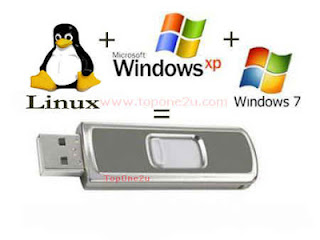 There are lots of software available out there to make a flash drive bootable, you can make bootable flash drive for xp, 7 or Linux easily with one of them. But what..if you want to make a Multi-bootable flash drive for those OS s, not individually?
 Step 4: Finally press GO! And wait for some time, until it showing up the massage Done! Of course, don’t forget to copy 2 files from the folder bootfiles to your flash drive when you finish it.


